Are you VCF ready? Are you sure?
It sounds like a yes or no question. It is closer to a few hundred of them, and Broadcom has written the answers down, in a great many places.
The problem: the answer is in hundreds of places
Take an estate on its way to VMware Cloud Foundation (VCF) 9. What can stop it is all written down by Broadcom, in 120+ Knowledge Base (KB) articles and 130+ other pages. They include the Product Support Notes, the release notes and their known issues, the converge and import pages and the design blueprints. Each is right, and each is updated on its own schedule.
Turned into checks, that is 120+ of them in more than 20 areas, and more than a dozen can stop an upgrade on their own:
| Area | For example |
|---|---|
| Network | No vSphere Distributed Switch at 8.0 or later; VMkernel adapters on DHCP; Cisco ACI integration |
| vCenter | The appliance’s readiness for 9.1; local plug-ins in the vSphere Client; a machine ID that differs between the vCenter’s own stores |
| Hardware | A CPU series discontinued for VCF 9.x (KB 318697); a network card or storage controller among the 1,700+ End of Life and Restricted devices in KB 391170 |
| VMs | VMs that stop a host entering maintenance mode; DirectPath I/O devices; clustered VMs on shared disks |
| Versions | No upgrade path to the target; NSX below the minimum for converge or import |
| Topology | A vCenter already connected to an SDDC Manager; capital letters in the vCenter name |
| Identity | Enhanced Linked Mode between vCenters; SSO replication before the upgrade |
| DNS | A .local suffix (KB 460245); a DNS server given to the VCF Installer that doesn’t answer (KB 445308); hosts without forward and reverse records |
| Lifecycle | Orphaned records in the vSphere Lifecycle Manager database (KB 442223); access to the software depot |
| Storage | Principal storage shared by every host; datastore types removed in 9.x |
| Licensing | A vSphere edition without distributed switches and DRS; the licence server before the vCenter upgrade |
| Hosts | Host time synchronisation; features deprecated in ESX 9.0 that hosts still use |
| Security, hygiene, operations | An expired STS signing certificate; host certificates expiring; VCF Operations node certificates |
| And more | DRS not fully automated; clusters still using baselines for lifecycle management |
Any one of them is easy to miss, and they live in different places. Nobody reads 250 pages before every upgrade workshop. They would be different by the next one anyway: Broadcom updated 29 of them in the first week of November alone.
So the usual answer is a spreadsheet, a dozen browser tabs and the words “it depends”. It still depends. But what it depends on can be written down, each item with its source, and a tool can read the estate to check it.
The solution: VCF Ready
That tool is VCF Ready (the command is vcfready). My team built it. It
reads a vSphere estate, runs 120+ checks against it, and says what it found, what it couldn’t tell and where Broadcom says so. It changes
nothing while it does.
This series shows how. This first post is about what it reads and how it decides. Part 2 is the upgrade plan and sizing. Part 3 is the deliverables, and how to share an assessment without sharing the customer. Part 4 is about writing your own checks.
Every picture in the series is of a made-up estate called Example Freight
Group: four vCenters, 65 hosts and 596 VMs, with domains that end in
example.com or example.local. Nothing in them belongs to a real
customer.
Step 1: read the estate
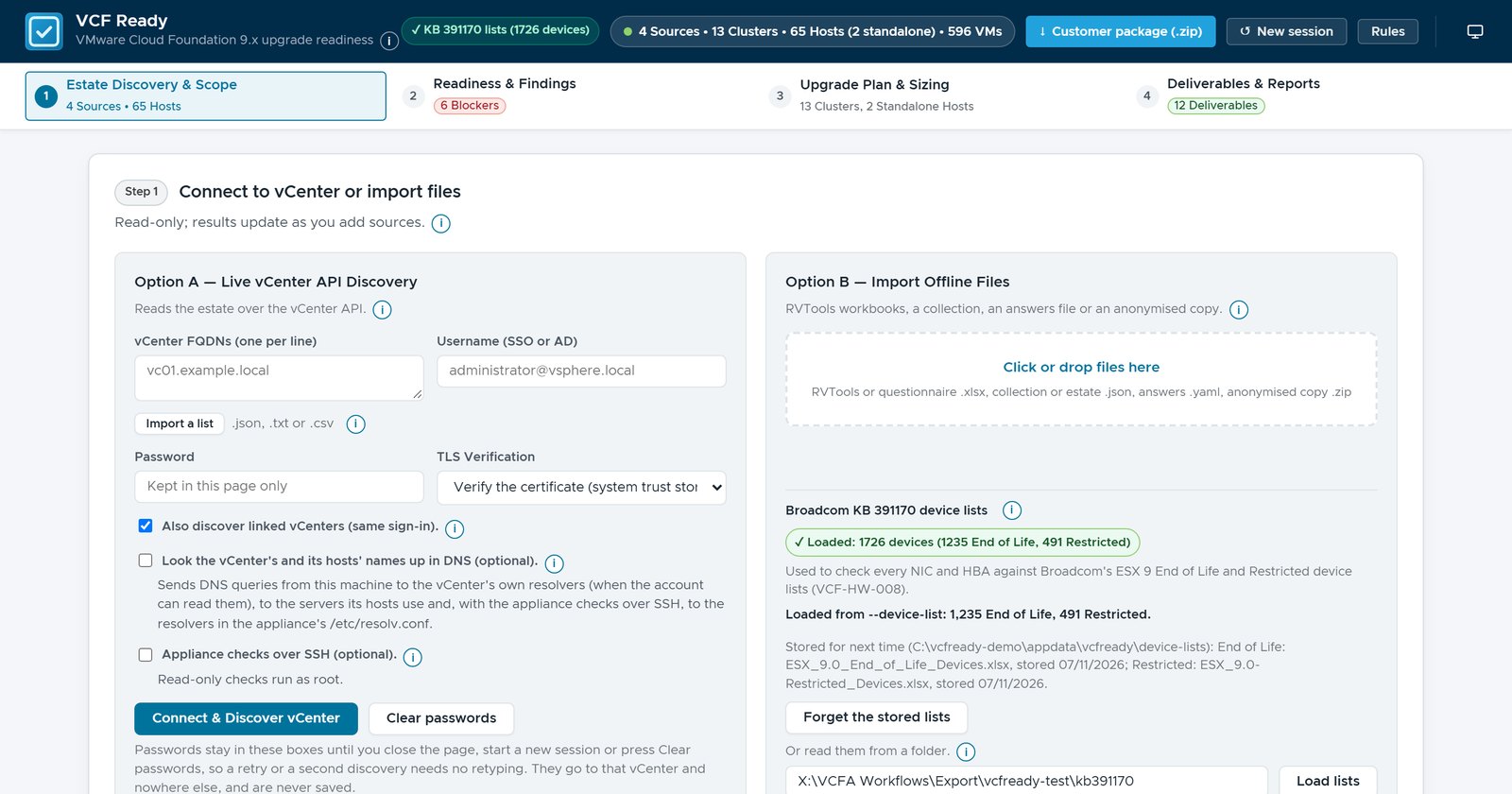
First question: what is in the estate, and can we find out without touching it? There are two ways in. You can drop in RVTools exports, the inventory spreadsheets many vSphere admins already have. Or you can point VCF Ready at a vCenter, with an account that has read-only permissions on it. Both can sit side by side.
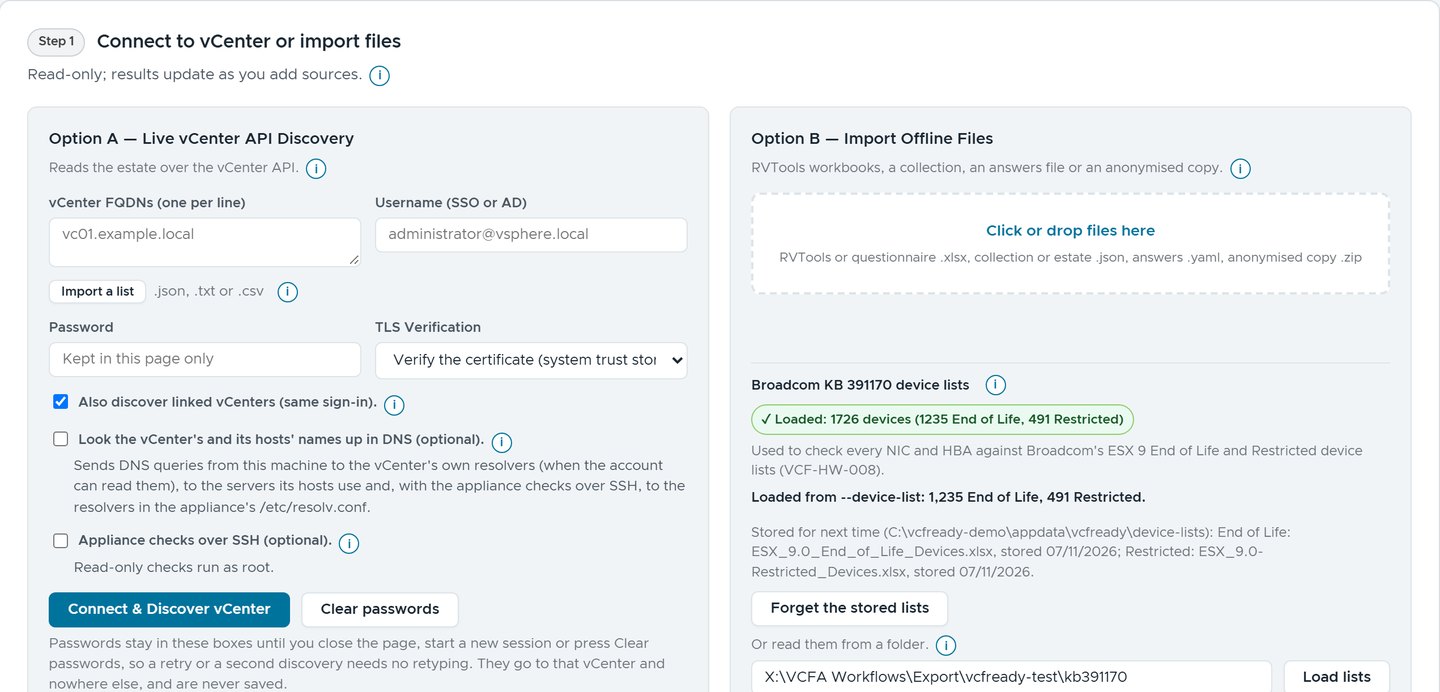 Option A reads a vCenter live. Option B takes files. Passwords stay in the page and are never saved.
A live read can also find the vCenters linked to the first one, on the same sign-in, because an estate rarely stops at a single vCenter. The estate in this series came from four RVTools exports and one answers file:
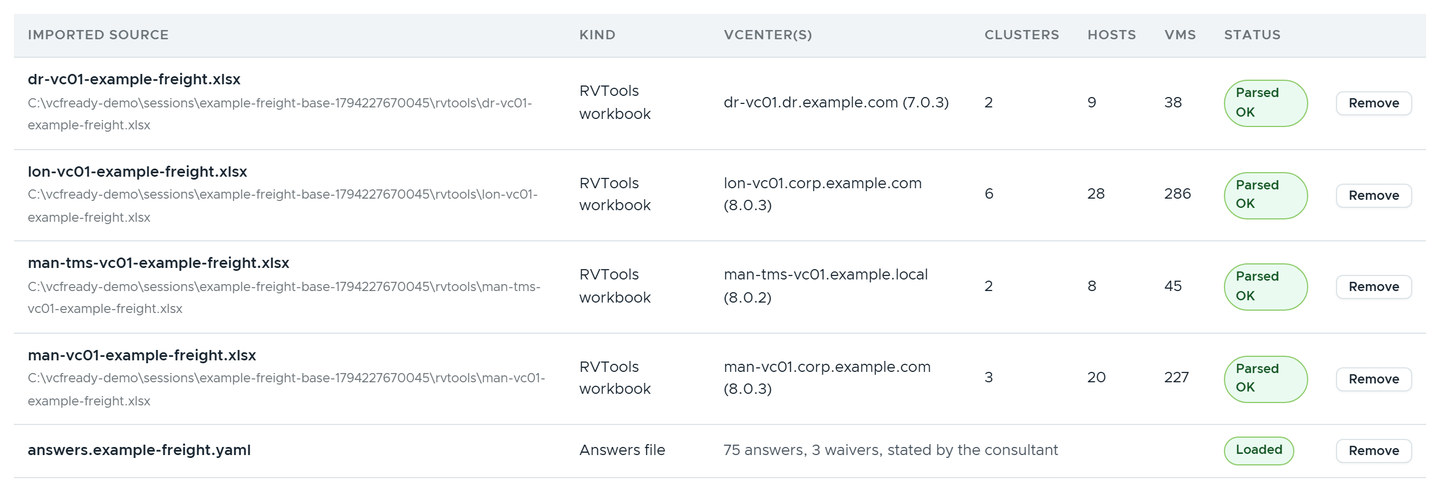 Four vCenters, 13 clusters, 65 hosts, 596 VMs. Each source says what it gave.
Why it never changes anything
Changing nothing is a promise, so here is the small print. The built-in checks read. They don’t write, restart, tag, move or tidy anything. vCenter is asked for its inventory through read-only calls. An RVTools export is a file. So is the answers file.
Four things go slightly beyond that, and the tool tells you about each.
- The appliance checks. They open an SSH session to the vCenter appliance and run read commands as root. They stay off until you tick the box.
- DNS lookups. While it collects, the tool asks the DNS servers that
vCenter and its hosts are set up with for their records, from the machine
it runs on. A lookup changes nothing, and on the command line
--no-network-probesturns them off. A box adds lookups at the hosts' servers when vCenter’s own can’t be read. - vCenter’s own compatibility report. It runs as a task on vCenter, shows in Recent Tasks and changes no configuration. It is the one built-in call that isn’t a plain read, so the guide says to tell the customer first.
- Custom checks. They can run commands you write, including ones that change things. Part 4 shows how the tool holds those back until a person approves them.
Everything else is a read. A few checks read more when the account has a little more than Read-only; the user guide names each privilege and the SSO group, what each opens, and that none of them is used to change anything.
Step 2: findings, and the questions for the workshop
Next question: what did it find, and what is left to settle? The scorecard answers in six tiles.
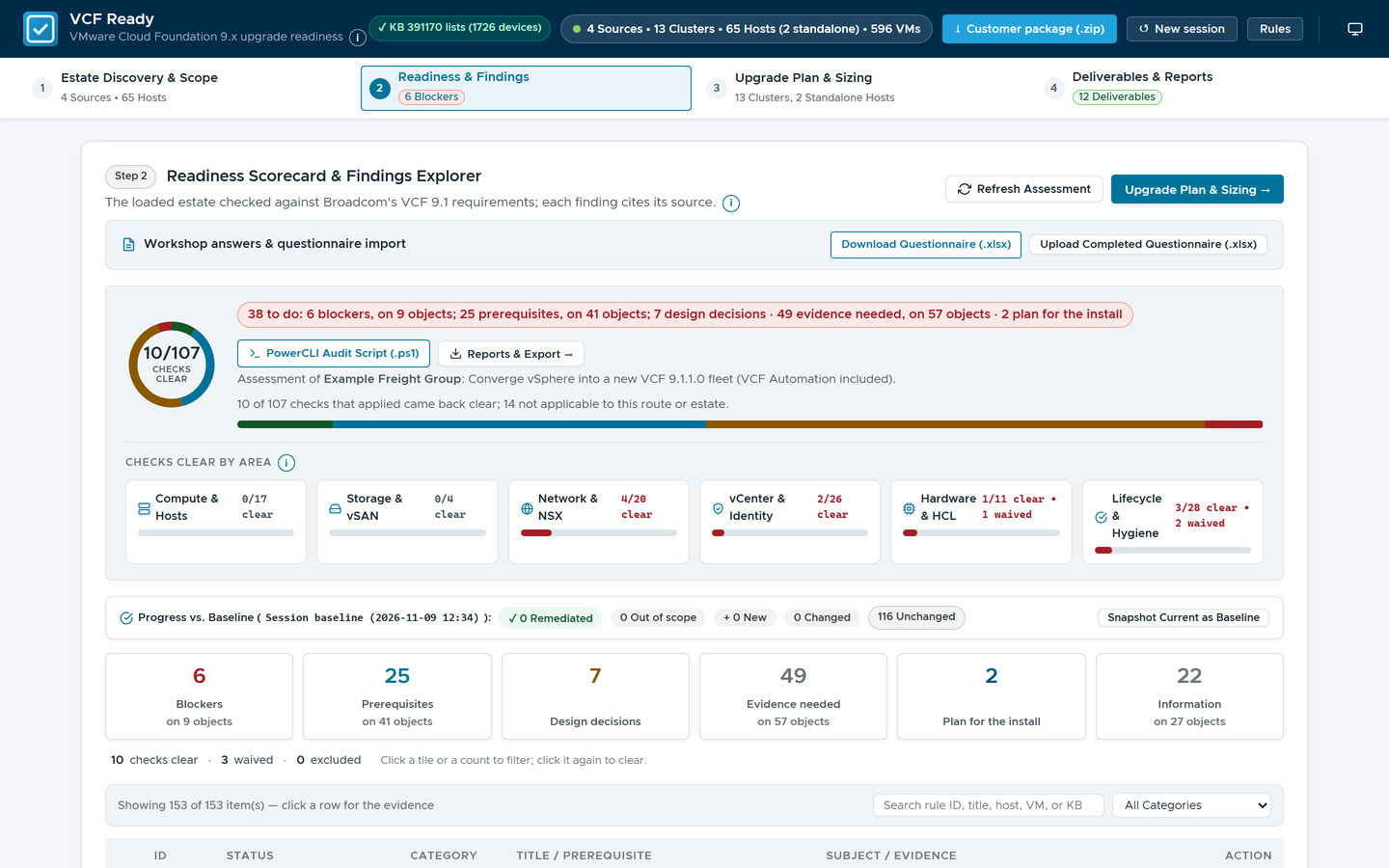 6 Blockers and 25 Prerequisites to work through, on 9 and 41 objects. The Evidence needed tile is the agenda for the workshop.
A Blocker must be settled before the route can go ahead. A Prerequisite is work to do before the change. A Design decision needs a choice. Information is there for the record. A tile counts checks, and says under its label how many objects, such as hosts or clusters, they were raised on. In this estate, 10 of the 107 checks that applied came back clear, and 14 more did not apply to the route.
Evidence needed is where the tool hands over to the people who know. Some facts live in a person’s head or behind a door the tool doesn’t open: whether an audit script has been run, which design the customer has chosen, what a vendor has confirmed. For each one, the tool says what would settle it and turns it into a workshop question or an item in the evidence request. The open items become the agenda: fault finding where something looks wrong, and design input where a choice is due.
What the tool won’t do is guess. An open item is never counted as a pass, because a pass nobody checked tends to turn up in the change window.
Every check cites Broadcom, read live
Open any finding and it shows what was found, what Broadcom recommends and where it says so.
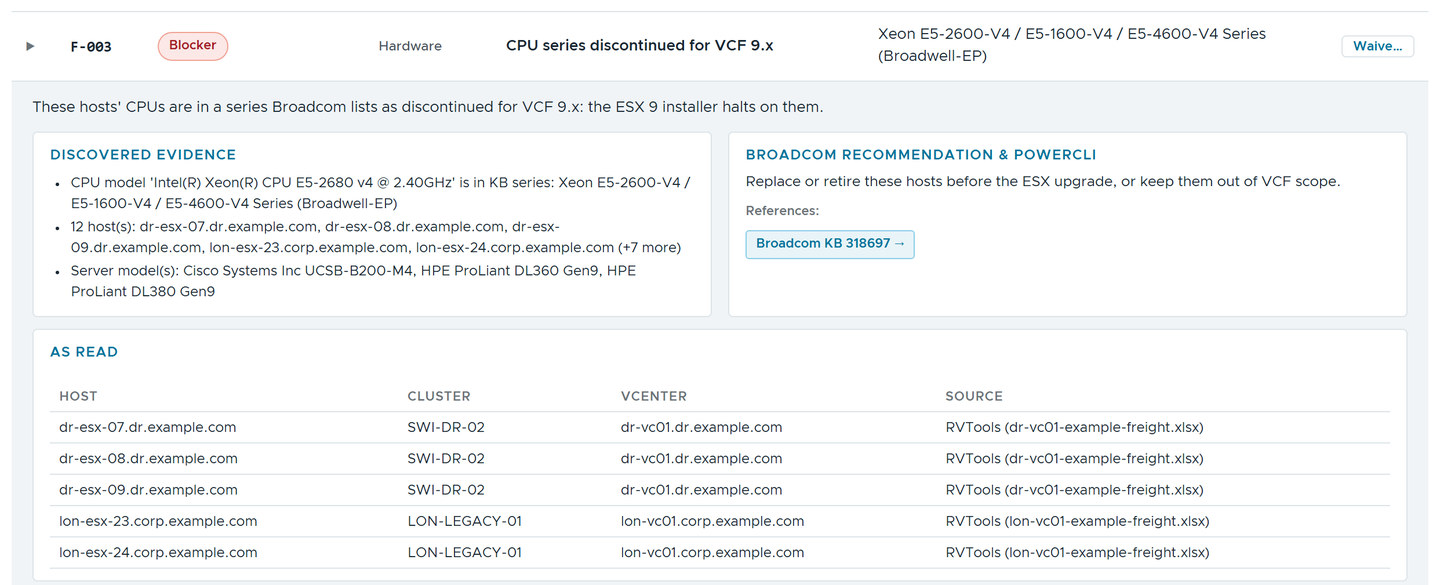 The evidence, the recommendation and the source, with the hosts it names in the As read table.
The 250+ Broadcom pages behind the checks, mostly KB articles and TechDocs, were each read on Broadcom’s site, and their titles and update dates are on record.
A weekly check reads them all again and flags any page Broadcom has changed. A finding then never rests quietly on a page that has moved on. Every report carries a “Broadcom data as of” line, so the reader knows how fresh it is.
We test the tool the same way: often, and with suspicion. One test passed for days, then failed on 7 November. A report line said “26717 days remaining”, and 26717 contains 17, the length of the fake password in that test. The calendar, it turns out, is also an input.
Hardware: three checks, no host accounts
Question: will the hosts’ CPUs, network cards and storage controllers be supported on ESX 9? The tool answers in three steps, and only the first runs on its own.
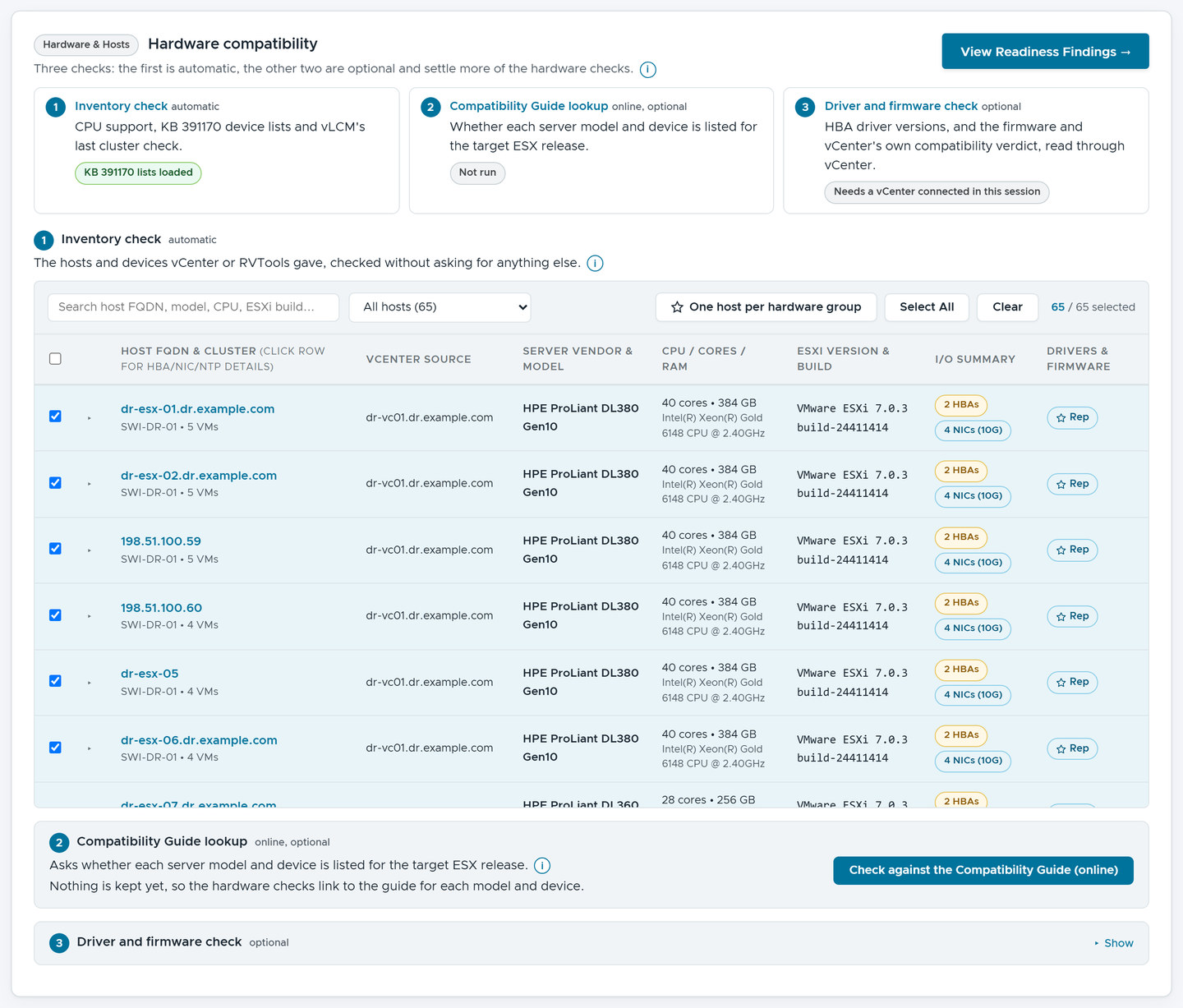 Three checks, in order of effort. The first needs nothing beyond what is already loaded.
- Inventory check. It works from what vCenter or RVTools already gave: the CPU series, identified by CPUID, and every network card and storage adapter checked against the End of Life and Restricted lists in KB 391170. The lists hold more than 1,700 devices. They are attachments behind a Broadcom login, so you load them once. The tool remembers them and says when Broadcom updates the page. It also shows the last cluster hardware check from vSphere Lifecycle Manager, if someone has run one.
- Compatibility Guide lookup. This asks Broadcom’s Compatibility Guide whether each server model and device is listed for the target ESX release. It shows what it would send, which is server model names and Peripheral Component Interconnect (PCI) IDs and never host names. It sends nothing until you confirm.
- Driver and firmware check. This reads each host’s storage adapter driver versions through vCenter, with the account you connected with. A Read-only role is enough. Lockdown mode doesn’t matter. Nobody creates an account on a host, which is a conversation most sites would rather skip.
vCenter does not hand a Read-only account the firmware lists, so the firmware comes from vCenter’s own compatibility report instead. The tool says which was read, and a firmware version it did not read stays unknown.
Click a host and the drawer shows why:
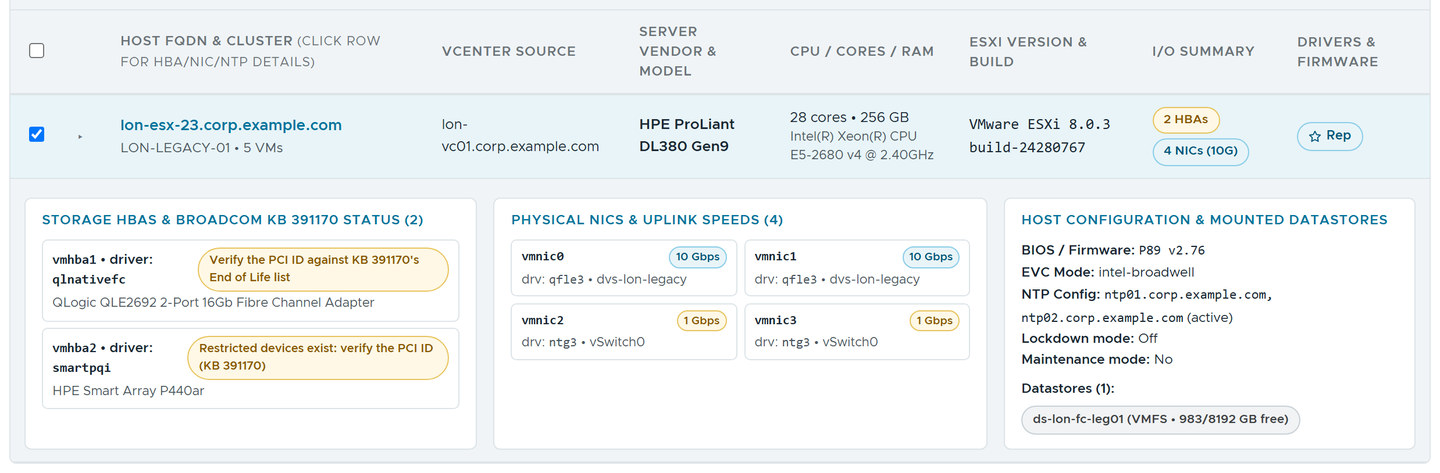 The adapters, their drivers and what KB 391170 says about them. No host login was needed.
Questions: the workshop, prepared
Question: what should the workshop settle? The tool asks only what the evidence leaves open. There are 100+ workshop questions, and each is asked only when a check that applies to the route needs the answer.
 Answers are choices, not free text, so a workshop produces facts rather than notes.
The questionnaire downloads as a spreadsheet for the workshop and uploads again afterwards. Each answer is recorded with who gave it and when. For what only the customer can supply, there is an evidence request in Word and Markdown, grouped by how each item is closed: a question, read-only access, an RVTools tab or a vendor’s word.
Blueprints and sizing
The findings say what stands in the way. The next question is what the estate becomes, and what it needs. Step 3 answers it with Broadcom’s own Planning and Preparation Workbook, VCF Upgrade Planner and design blueprints, filled in from the estate. It also draws the sites and regions the target spans. That is part 2.
What comes out
Step 4 collects the deliverables:
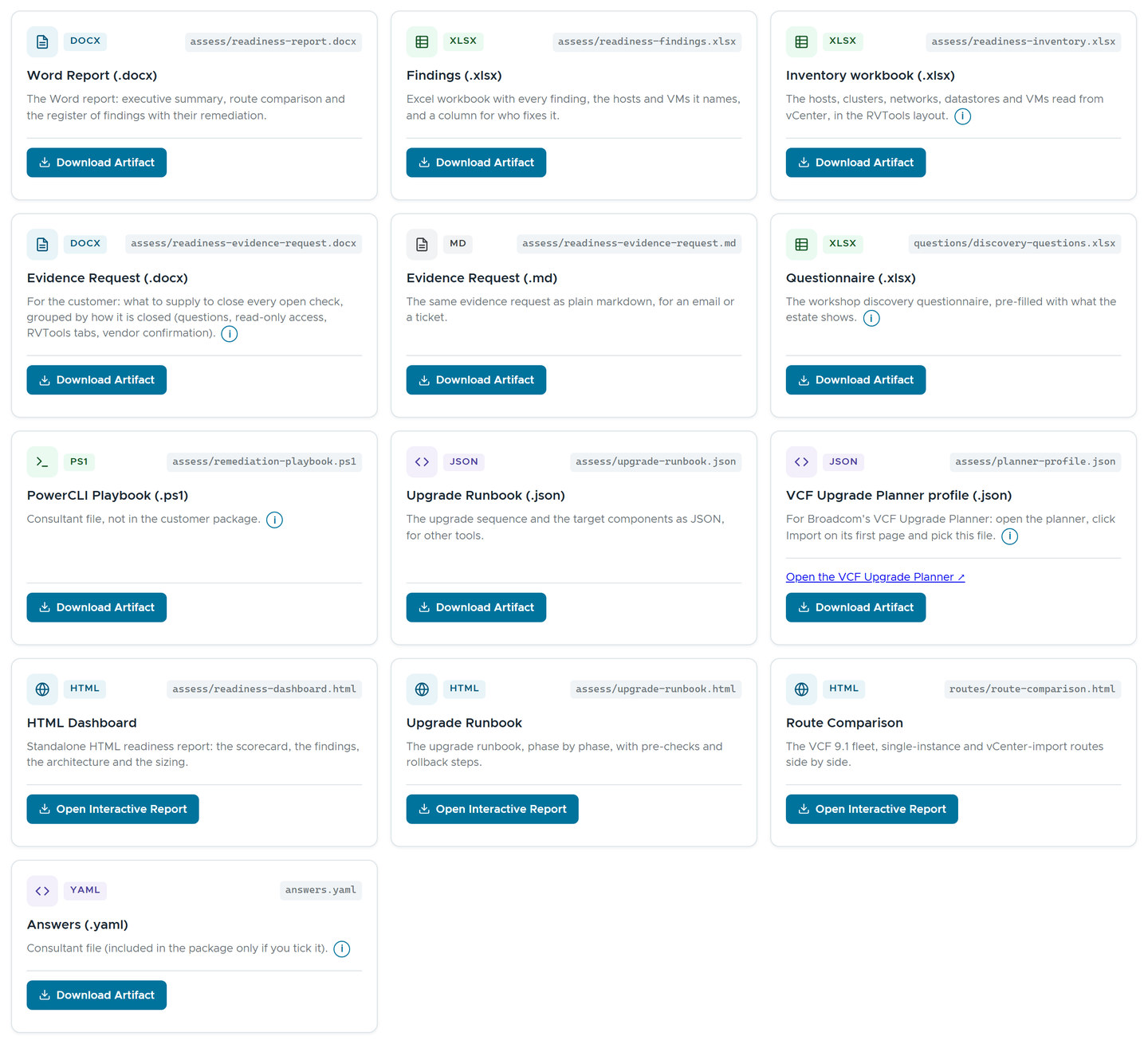 A dozen files from one assessment, each built from the same findings.
The Word report opens with what has to happen before the upgrade: every Blocker, Prerequisite and Design decision. The evidence still needed comes next, then readiness by area. The findings workbook names the hosts and VMs behind each finding. The planner profile opens Broadcom’s own VCF Upgrade Planner, which stays the authority on the phased plan.
Why this matters outside the lab
A readiness answer is only useful if the customer trusts how it was reached. Three things carry that trust here. Nothing was changed to get the answer. Every claim has a Broadcom source with a date. And what isn’t known is said plainly, not smoothed over.
That turns the first meeting into a conversation about the estate, not about the tool.
Rules learned
- Read first and change nothing. When something has to go beyond a read, say so where it is chosen.
- Turn what the estate can’t show into questions for the people who know, and never count an open item as a pass.
- Put the source and its date on every finding, and read the sources again on a schedule.
- Ask vCenter for what it already knows, such as driver versions, before asking anyone for an account on a host.
- Ask only the questions the evidence leaves open, and make the answers choices.
What’s next
Part 2 is the upgrade plan and sizing, from Broadcom’s own workbook, planner and blueprints. Part 3 is the deliverables, and how to share an assessment without sharing the customer. Part 4 is about writing your own checks.
VCF Ready isn’t public, so there is no download link. If you would like to see it run on an estate, get in touch.
Taking these pictures had a cost I didn’t plan for. The screenshot script left a 50 MB browser profile behind on every run, and filled the jump host’s C: drive. The pictures survived. The drive needed a lie down.
Broadcom documentation
- Deprecated devices in ESX 9.0 and implications for support (KB 391170): the End of Life and Restricted device lists the inventory check matches by PCI ID
- CPU Support Deprecation and Discontinuation In VCF Releases (KB 318697): the CPU series that ESX 9 discontinues, cited by the finding above
- Verifying hardware compatibility for an upgrade from vSphere 8.0 U3 to VCF 9.x (KB 443586): checking hardware before the upgrade, and the compatibility report in the vSphere Client
- Hardware Compatibility check results for ESXi 9.0.X: “Host model is not supported by any version of ESXi” (KB 427039): why a server model can look unsupported by its name alone
- Broadcom Compatibility Guide: the lookup the second hardware check asks, for server models and devices
- Design Blueprints for VMware Cloud Foundation: the blueprints, each with its own page and host minimums
- Upgrading to VMware Cloud Foundation 9.1.x: the upgrade routes whose requirements several checks cite
Lab environment; opinions my own. VCF Ready is our own tooling, not a Broadcom product. The estate in the pictures is fictional, with example domains. VMware, VCF and ESX are trademarks of Broadcom Inc. or its subsidiaries.